

DNS
Aral Cloud runs authoritative nameservers for your domains. Once you point a domain at Aral Cloud, you manage all of its records from the console — and you can route any A/AAAA record through the Aral Cloud edge for TLS and a Web Application Firewall, the same way Cloudflare's "orange cloud" works.
Everything below lives under Console → DNS.
 Add a domain and DNS zone0:34
How it works
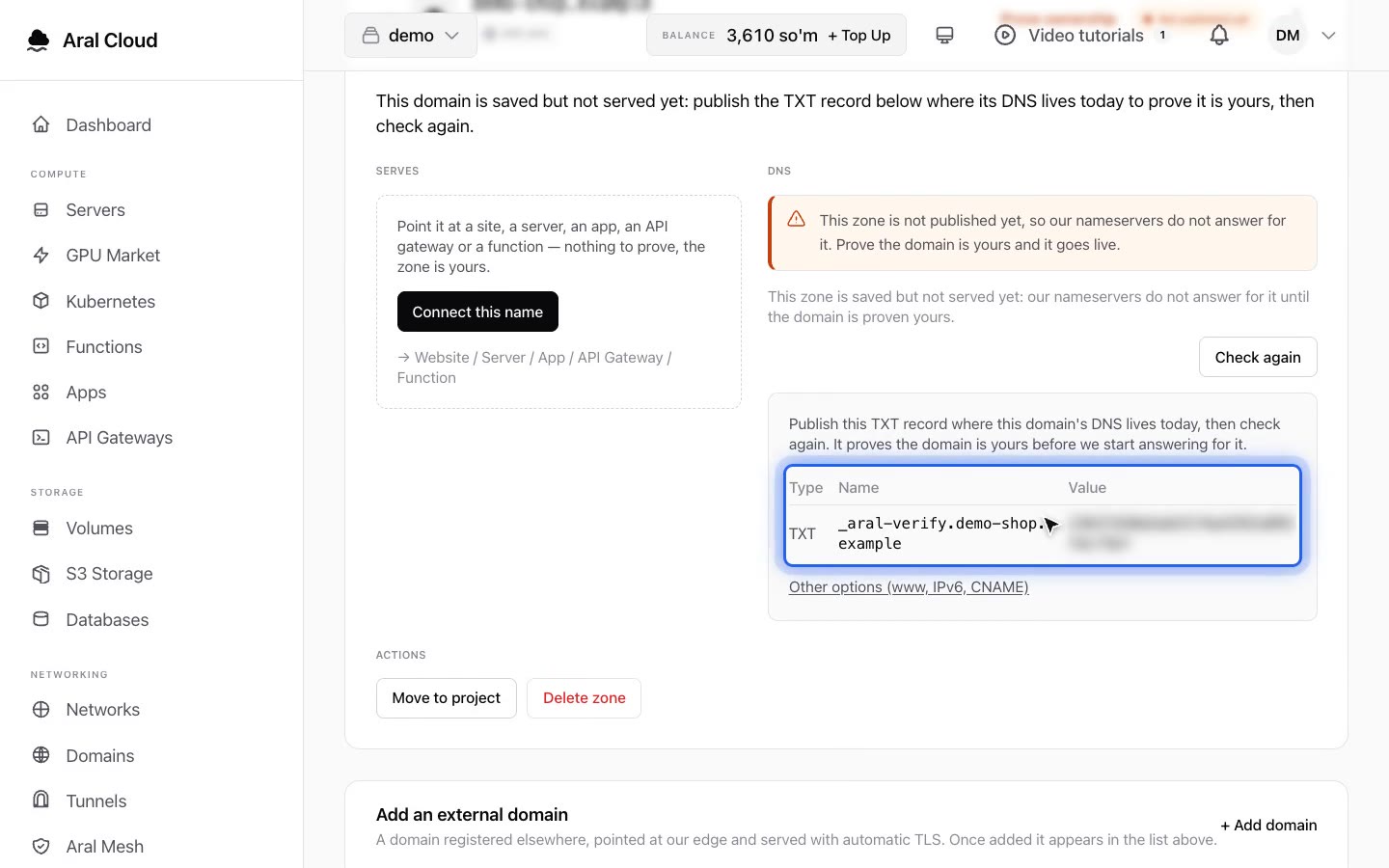
You add a domain as a zone, change the nameservers at your registrar so they point to Aral Cloud, and from then on every lookup for that domain is answered by Aral Cloud. You then add records (A, AAAA, CNAME, MX, TXT, …) inside the zone.
Add a zone
- Open Console → DNS and click Add zone.
- Enter your domain (for example
example.com) and confirm.
The new zone appears in the list on the left. Select it to manage its records.
Point your registrar at Aral Cloud
A zone is only live once your registrar delegates the domain to Aral Cloud's nameservers.
- In the DNS page, find the Nameservers panel. It shows the exact nameserver hostnames assigned to your account (and their IPs where available). Use the Copy button to copy each one.
- Sign in to your domain registrar and replace the existing nameservers with the ones shown in the console.
- Save the change at the registrar.
WARNING
Always use the exact nameserver hostnames shown in your console — do not copy them from anywhere else. Nameserver delegation can take from a few minutes up to 24–48 hours to propagate, depending on your registrar and TLD.
Back in the console, each zone shows a Delegated or Pending delegation badge. Click Recheck to query the domain's live NS records again; when the observed nameservers match the expected ones, the badge turns to Delegated.
Manage records
Select a zone and click Add record. Each record has:
- Name — the subdomain, such as
www, or@for the zone root (apex). - Type — one of
A,AAAA,CNAME,MX,TXT,NS,SRV,CAA. - Value — the target: an IPv4 for
A, an IPv6 forAAAA, a hostname forCNAME/MX/NS, text forTXT, and so on. - TTL — how long resolvers may cache the record. Leave it blank to use the default (300 seconds).
- Priority — required for
MXandSRVrecords only.
For A/AAAA records you can pick a value from your existing Aral Cloud servers, or type any IP.
To change a record, click its value to edit it inline, or use the edit button for the full form. The delete button removes a record.
TIP
When adding an A/AAAA record you choose a traffic mode: Proxied (through the edge), Gateway (route to a Aral Cloud API Gateway), or DNS only (a plain record that resolves straight to your value). All other record types are always DNS only.
Proxied records (orange-cloud)
For A and AAAA records you can turn on Proxied mode. When a record is proxied:
- Public DNS resolves the record to the Aral Cloud edge instead of your server.
- The edge terminates TLS and forwards requests to your real backend (the origin) as a reverse proxy.
- A Web Application Firewall (WAF) can filter malicious traffic before it ever reaches your origin.
- Your origin server's real IP is hidden from the public — visitors only ever see the edge.
When a record is DNS only, Aral Cloud just returns your value as-is and traffic goes straight to your server, with no edge in front of it.
TIP
You can list more than one backend on a proxied record. The edge load-balances incoming requests across all of them.
WARNING
Proxied mode only applies to A and AAAA records — CNAME, MX, TXT and the rest are always DNS only.
Proxy settings
Each proxied record has its own Proxy settings (the gear icon on the record). There you can tune how the edge handles its traffic:
- Timeout — how long the edge waits for the origin to respond.
- Caching — cache origin responses at the edge, with a configurable cache TTL.
- Compression — compress responses on the way out.
- WAF — enable the Web Application Firewall for this record.
- Rate limit — cap requests per minute (0 disables it).
- Retries — number of retry attempts and the backoff between them when the origin fails.
- Headers (advanced) — add or set custom request and response headers.
These settings apply only while the record is proxied. A DNS-only record passes traffic through untouched.
Next steps
- New here? Start with Getting Started.
- Point a proxied record at a server and you get TLS and WAF in front of it with no extra setup.