

Servers (VMs)
Servers are virtual machines you launch from the console under Compute → Servers. Each one is a full Linux machine with its own vCPU, RAM and NVMe disk that you can start, stop, resize, snapshot, rebuild and back up. This page covers their whole lifecycle.
Creating a server
 Create a server0:58
Open Servers → Create and work through the form:
- Region — pick where the machine runs. Available regions include Helsinki (Finland), Falkenstein and Nuremberg (Germany), Ashburn and Hillsboro (USA) and Tashkent (Uzbekistan). The picker shows how much capacity is free in each region.
- Plan — choose the size. Each plan lists its vCPU, RAM and NVMe disk, with the price shown both per hour and per month (UZS). Plans come in standard and GPU types — GPU plans add an accelerator for ML and compute workloads, standard plans are general-purpose VPS.
- Operating system — select an image. Ubuntu, Debian, CentOS, Fedora, Rocky, Alma, Arch and Alpine are available; Ubuntu 24.04 is the default. Your own snapshots also appear here as custom images.
- Hostname — the server name. It must be 1–63 characters, letters/digits/dashes only, and may not start or end with a dash.
- Network (optional) — attach the server to one of your private networks.
- Authentication — choose one:
- Password — set a root password of at least 8 characters.
- SSH key — select one or more keys (up to 10) to inject. You can add a new key inline.
WARNING
A server must have either a password or at least one SSH key, or you will be locked out of it. The form blocks you from continuing without one.
The summary panel on the right shows the running cost. Billing is per second against your prepaid balance — delete servers you no longer need.
Press Create. The server starts in a pending/provisioning state and becomes reachable in roughly a minute; the page polls until it is ready.
TIP
Every step here is also scriptable with the CLI — handy for repeatable or automated deployments.
Power controls (start / stop / reboot)
From a server's detail page, or the row actions on the list, you can:
- Start a stopped server
- Stop a running server
- Reboot a running server
Reboot is only available while the server is running. A server suspended for insufficient balance can't be started, stopped or rebooted until you top up — only deletion is allowed.
Bulk actions
On the Servers list, tick several servers to act on them at once: Start, Stop, Reboot, Move (to another project) or Delete. Locked servers are skipped by bulk delete and reported back to you.
Resize
Resize moves the server to a different plan. Pick the new plan and confirm.
- Resize is supported for Aral Cloud KVM servers.
- vCPU and RAM are applied with a quick stop-and-relaunch, so expect a brief reboot.
- The boot disk can grow to the new plan's size but is never shrunk — you can't move to a plan with a smaller disk.
Snapshot → image
Snapshot captures the server's boot disk as a private, launchable image. Give it a name; the snapshot appears in your image library and can be used as the OS when creating new servers.
Existing snapshots of a server are listed in the snapshot dialog, where you can delete the ones you no longer need.
TIP
Snapshots are stored images and are billed for the storage they use, so remove stale ones.
Rebuild
Rebuild reinstalls the operating system from an image (the current OS by default, or another image you choose). The server keeps its identity, IP and resources, but the boot disk is wiped — everything on it is erased.
WARNING
Rebuild is destructive and irreversible. It is blocked while delete protection is on — turn the lock off first.
Delete and delete protection
Delete permanently destroys the server and all its data. From the list you must type the server's name to confirm.
To guard against accidents, turn on delete protection (the lock) under Settings. While a server is locked it cannot be deleted or rebuilt; disable the lock first. Locked servers show a lock badge in the list and detail header.
Accessing the server
 Connect to a server — SSH, console, password0:54
SSH
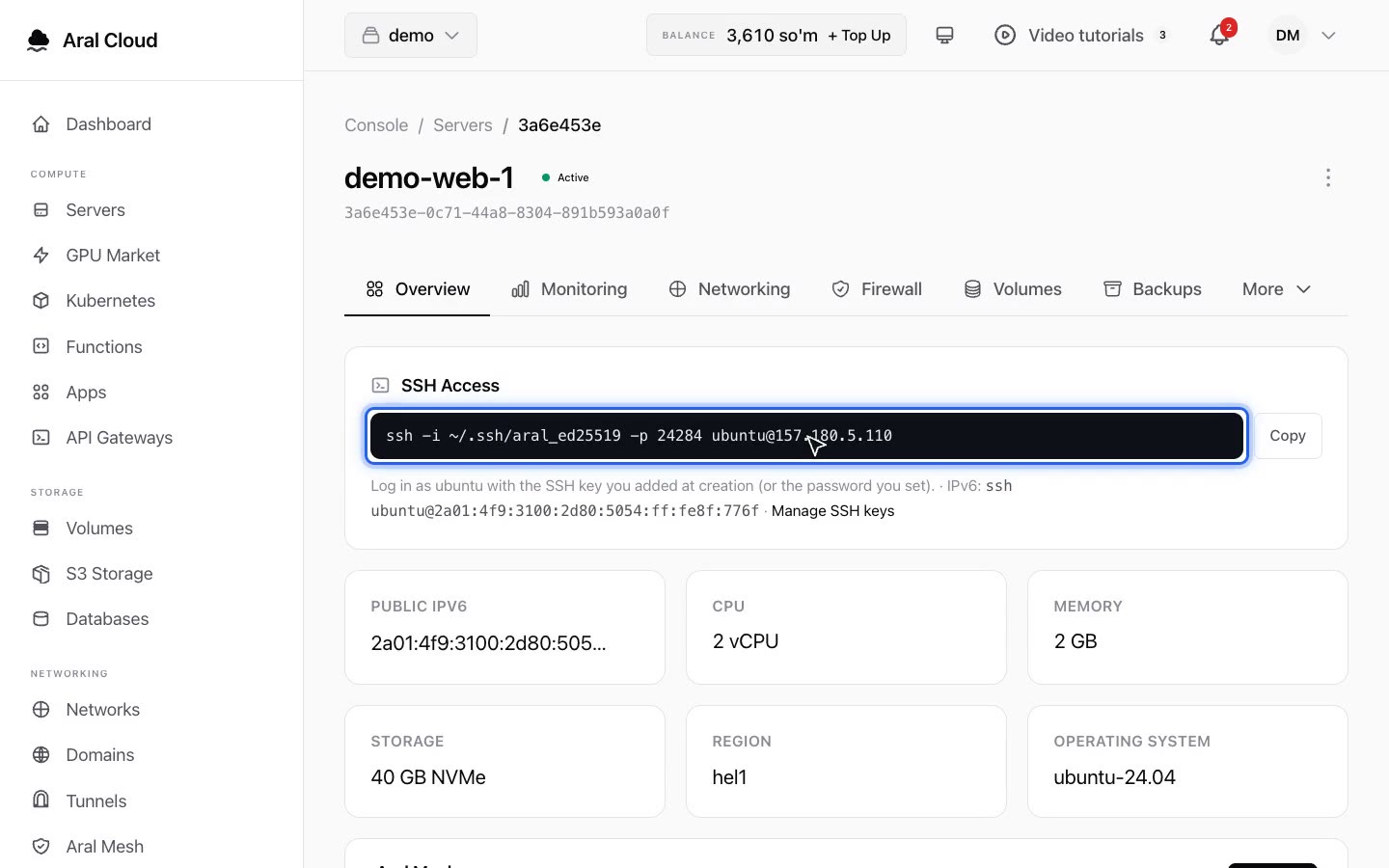
Log in as ubuntu (or root if you chose password access) using the password you set or an SSH key you added at creation. The overview tab shows a ready-to-copy command.
If the server has public IPv6:
ssh ubuntu@<your-ipv6>Servers without a dedicated public IPv4 get a shared SSH port forward on the node's public IP, in the 22000–32000 range. Use the port shown on the server page:
ssh -p <ssh_port> ubuntu@<node-ip>TIP
Need a dedicated public IPv4? Those can be ordered separately — see the Pricing page. Until then, use the shared SSH port forward or IPv6.
Web console
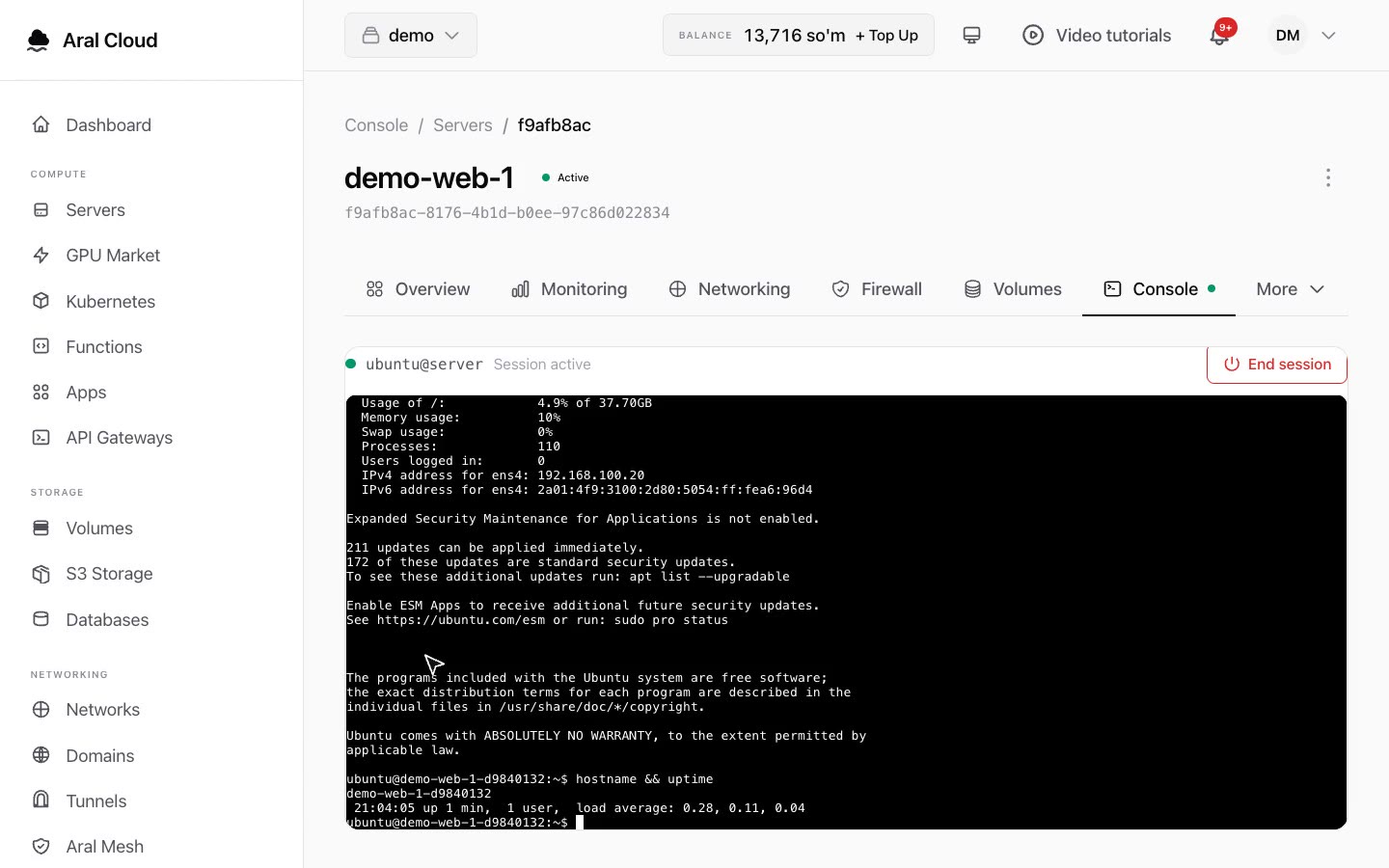
The Console tab opens a browser-based VNC session straight into the machine — useful when SSH isn't reachable (for example after a firewall or network change). Console sessions are short-lived and open on demand.
Port forwards
For a server on the private (NAT) network, the Networking tab lets you publish ports on the node's public IP. Add a forward with an external port (1024–65535), the internal port on the server, and the protocol (TCP or UDP). Inbound traffic to node-ip:external-port is then routed to your server's private IPv4. Remove a forward at any time from the same list.
Rotating SSH keys
Under Settings → SSH keys you can update the authorized keys of a running server live (1–10 keys). Paste one key per line and apply — the change is pushed to the guest and takes effect without a rebuild.
Backups
 Backups and snapshots1:16
The Backups tab provides full-server backups, separate from snapshots:
- Backup now takes an on-demand backup. This is a paid action — the per-backup price is shown on the tab and charged to your balance when you run it.
- Automatic backups can be scheduled with a retention count (default 7, between 1 and 30). Toggle the schedule on or off.
- Restore rolls the server back to a completed backup. The server enters a
restoringstate while it is applied.
WARNING
Restoring overwrites the current disk with the backup's contents. Make sure you've picked the right backup first.
Monitoring
The Monitoring tab shows live CPU and memory usage (refreshed every few seconds) plus uptime and state, with history over the last 1h / 6h / 24h. Metrics are available while the server is running.
Firewall
If the server is attached to a managed private network, the Firewall tab applies default-deny inbound rules — only the ports you open are reachable. Use the quick presets (SSH, HTTP, HTTPS) or add a rule with a port, protocol (TCP/UDP) and a source CIDR (e.g. 0.0.0.0/0).
Volumes and projects
- Volumes — attach extra NVMe block storage to the server, resize it, and back it up. See Volumes.
- Projects — rename a server or move it between projects of your organization from the Settings tab.
Automating with the CLI
Everything above — create, power actions, resize, snapshot, rebuild, backups, port forwards and SSH-key rotation — is available from the CLI, which is the fastest way to manage servers at scale or from scripts.